Showing posts with label Android Official Firmware. Show all posts
Showing posts with label Android Official Firmware. Show all posts
Wednesday, October 29, 2014
Samsung Galaxy Tab Active T360 Android 4.4.4 Kitkat T360XXU1ANI9 | ITV1ANI3 Italy Firmwares Download

Monday, September 29, 2014
Samsung Galaxy Firmware G850SKSU2ANI1 Android 4.4.4 KitKat Firmware for Galaxy Alpha SM-G850S - How to Install
G850SKSU2ANI1 Android 4.4.4 KitKat Firmware Last
Updated on 26-Sep-2014. Users of Samsung Galaxy Alpha SM-G850S can
now update their Smartphone with the latest KSU2ANI1 Android 4.4.4 KitKat officialfirmware.
Samsung recently started rolling out an OTA update about the firmware.
The latest firmware build version number is G850SKSU2ANI1. The Galaxy
Alpha is the latest high end android Smartphone by Samsung, recently
released with Android 4.4 KitKat out of the box and this is the first
official Android 4.4.4 KitKat firmwareupdate for SM-G850S. If you own
the Smartphone and not yet updated this latest firmware, then update the
same using our simple tutorial below. The below step by step guide will
help you to download and install the G850SKSU2ANI1 Android
4.4.4KitKat Firmware manually through Odin.

If your Galaxy Alpha G850S running on Android 4.4.2 KitKat then
update this latest Android 4.4.4KitKat firmware to enjoy some new
features, performance enhancement and bug fixes.
So, want to update your Galaxy Alpha G850S to the latest G850SKSU2ANI1
Android 4.4.4 KitKatfirmware? To install in official way, either
you can go for OTA (over the air) from Settings-About Phone-Software
Update or download firmware through the Samsung Kies utility.
However, most of us prefer manual way to update official firmware.
So, in this article you’ll find step by stepmanual guide to update
the latest Android 4.4.4 KSU2ANI1 firmware on your Galaxy
Alpha G850Sthrough Odin.
Important Note:
"The firmware is released only for the Samsung
Galaxy Alpha SM-G850S model, so don’t try this in any other android
device. Check your device model number from Settings-About Phone. Also the
tutorial is based on Windows PC. Follow all the pre-requisites, procedures and
steps carefully to avoid breaking your phone".
Download G850SKSU2ANI1 Android 4.4.4 KitKat Official
Firmware
Samsung rolled out the firmware for the following
countries. The firmware which are unbranded or not locked to any
carrier, no matter of which country or region, can be flashed on any Galaxy
Alpha SM-G850S model.
Previous Firmware Builds:
[Firmware for rest of the countries and carrier will be added here when
available]
Pre-Requisites:
Check battery percentage, your device should have at least 60% battery
power
Turn on USB Debugging mode, go to Settings-Developer
Options-USB Debugging
Backup important data and settings to external storage- follow this guide
Install USB driver for your device on your
computer- Download Samsung USB Driver
Points to be noted:
If you are using any Custom ROM such as- CyanogenMod,
Paranoid Android, AOKP, SLIM ROMs etc, then it’ll replaced by this
official Stock ROM
Custom Recovery (CWM or TWRP Recovery) will be replaced
by Stock Recovery
After flashing official firmware, your device will no
longer belongs to rooted device. However you can root your device any time
after flashing the firmware.
All the above pre-requisites are very important and must
follow before proceed to installation guide. Hope you get all the above points.
Now, go through the below tutorial to install Android 4.4.4 G850SKSU2ANI1
official firmware on Galaxy Alpha G850S.
How to Install Android 4.4.4 KitKat Official Firmware on
Galaxy Alpha G850S through Odin:

Download Android 4.4.4 KSU2ANI1 Firmware for Galaxy
Alpha G850S from the above list
Download Odin
3.09
Switch off your phone and boot Galaxy Alpha G850S into Download
Mode by pressing and holding the Volume Down+Home+Power buttons
(long press until the boot screen appear), now press Volume Up key to
proceed to Download Mode.
Extract the downloaded Odin3.09 zip file and
run the Odin3 v3.09.exe file as anadministrator (Right click
on the .exe file and click on Run as administrator)
Now connect your Galaxy Alpha G850S to your
computer via USB cable
In Odin3 screen, you should see a COM Port
Make sure that, only the “Auto Reboot” and “F.
Reset Time” options are checked.
Now, extract the downloaded firmware zip
file, you’ll find a firmware file with extension.tar.md5
In Odin screen, click on AP (PDA in older Odin) button
and select the firmware file with.tar.md5 extension (The firmware file
look something like: G850SXXDLJ5_G850SODDDLI7_INU.tar.md5)
Now, click on the Start button to begin the
installation process, wait few moments.
Once completed, you would see “PASS!” message in
ID:COM port having green background
Your phone should automatically reboot after completion
You can now disconnect your phone from computer
Finish
Samsung Galaxy Firmware G850KKTU2ANI1 Android 4.4.4 KitKat Firmware for Galaxy Alpha SM-G850K - How to Install
G850KKTU2ANI1 Android 4.4.4 KitKat Firmware Last
Updated on 26-Sep-2014. Owners of Samsung Galaxy Alpha SM-G850K can
now update their Smartphone with the latest KTU2ANI1 Android 4.4.4 KitKat officialfirmware.
Samsung recently started rolling out an OTA update about the firmware. The
latest firmware build version number is G850KKTU2ANI1. The Galaxy
Alpha is the latest high end android Smartphone by Samsung, recently
released with Android 4.4 KitKat out of the box and this is the first
official Android 4.4.4 KitKat firmwareupdate for SM-G850K. If you own
the Smartphone and not yet updated this latest firmware, then update the
same using our simple tutorial below. The below step by step guide will
help you to download and install the G850KKTU2ANI1 Android
4.4.4KitKat Firmware manually through Odin.

If your Galaxy Alpha G850K running on Android 4.4.2 KitKat then
update this latest Android 4.4.4KitKat firmware to enjoy some new
features, performance enhancement and bug fixes.
So, want to update your Galaxy Alpha G850K to the latest G850KKTU2ANI1
Android 4.4.4 KitKatfirmware? To install in official way, either
you can go for OTA (over the air) from Settings-About Phone-Software
Update or download firmware through the Samsung Kies utility.
However, most of us prefer manual way to update official firmware. So, in
this article you’ll find step by step manual guide to update the
latest Android 4.4.4 KTU2ANI1 firmware on your Galaxy Alpha
G850Kthrough Odin.
Important Note:
"The firmware is released only for the Samsung
Galaxy Alpha SM-G850K model, so don’t try this in any other android
device. Check your device model number from Settings-About Phone. Also the
tutorial is based on Windows PC. Follow all the pre-requisites, procedures and
steps carefully to avoid breaking your phone".
Download G850KKTU2ANI1 Android 4.4.4 KitKat Official
Firmware
Samsung rolled out the firmware for the following
countries. The firmware which are unbranded or not locked to any
carrier, no matter of which country or region, can be flashed on any Galaxy
Alpha SM-G850K model.
[Firmware for rest of the countries and carrier will be added here when
available]
Pre-Requisites:
Check battery percentage, your device should have at least 60% battery
power
Turn on USB Debugging mode, go to Settings-Developer
Options-USB Debugging
Backup important data and settings to external storage- follow this guide
Install USB driver for your device on your
computer- Download Samsung USB Driver
Points to be noted:
If you are using any Custom ROM such as- CyanogenMod,
Paranoid Android, AOKP, SLIM ROMs etc, then it’ll replaced by this
official Stock ROM
Custom Recovery (CWM or TWRP Recovery) will be replaced
by Stock Recovery
After flashing official firmware, your device will no
longer belongs to rooted device. However you can root your device any time
after flashing the firmware.
All the above pre-requisites are very important and must
follow before proceed to installation guide. Hope you get all the above points.
Now, go through the below tutorial to install Android 4.4.4 G850KKTU2ANI1
official firmware on Galaxy Alpha G850K.
How to Install Android 4.4.4 KitKat Official Firmware on
Galaxy Alpha G850K through Odin:

Download Android 4.4.4 KTU2ANI1 Firmware for Galaxy
Alpha G850K from the above list
Download Odin
3.09
Switch off your phone and boot Galaxy Alpha G850K into Download
Mode by pressing and holding the Volume Down+Home+Power buttons
(long press until the boot screen appear), now press Volume Up key to
proceed to Download Mode.
Extract the downloaded Odin3.09 zip file and
run the Odin3 v3.09.exe file as an administrator (Right click on
the .exe file and click on Run as administrator)
Now connect your Galaxy Alpha G850K to your
computer via USB cable
In Odin3 screen, you should see a COM Port
Make sure that, only the “Auto Reboot” and “F.
Reset Time” options are checked.
Now, extract the downloaded firmware zip
file, you’ll find a firmware file with extension.tar.md5
In Odin screen, click on AP (PDA in older Odin) button
and select the firmware file with.tar.md5 extension (The firmware file
look something like: G850KXXDLJ5_G850KODDDLI7_INU.tar.md5)
Now, click on the Start button to begin the
installation process, wait few moments.
Once completed, you would see “PASS!” message in
ID:COM port having green background
Your phone should automatically reboot after completion
You can now disconnect your phone from computer
Finish
Samsung Galaxy Firmware G313MYUHU0ANH2 Android 4.4.2 KitKat Firmware for Samsung SM-G313MY - How to Install
G313MYUHU0ANH2 Android 4.4.2 KitKat Firmware Last
Updated on 26-Sep-2014. Download and update the latest UHU0ANH2 Android 4.4.2
KitKat official firmwareon Samsung SM-G313MY. Samsung recently
started rolling out an OTA update about the firmware. The latest firmware build
version number isG313MYUHU0ANH2. The Samsung SM-G313MY recently announced by
Samsung with Android 4.4.2 Kitkat out of the box and this is the first officialfirmware update.
If you own the device and yet to update your device with
this latest firmware, then update the same using our simple tutorial
below. The below guide will help you to download and install the G313MYUHU0ANH2
Android 4.4.2 KitKat firmware manually through Odin.

As the Samsung SM-G313MY released with Android
4.4.2 KitKat, you can only expect few bug fixes and performance enhancement
with this latest update. So, want to update your Samsung
SM-G313MY to the latest G313MYUHU0ANH2 Android 4.4.2 KitKat firmware?
To install in official way, either you can go for OTA (over the air)
from Settings-About Phone-Software Update. or download firmware through
the Samsung Kies utility. However, most of us prefer manual way to
update official firmware. So, in this article you’ll find step by
step manual guide to update the latest Android 4.4.2 UHU0ANH2 firmware on
your Samsung SM-G313MY through Odin.
Important Note:
"The firmware is released only for the Samsung
Samsung SM-G313MY model, so don’t try this in any other android device.
Check your device model number from Settings-About Phone. Also the
tutorial is based on Windows PC. Follow all the pre-requisites, procedures and
steps carefully to avoid breaking your phone".
Download G313MYUHU0ANH2 Android 4.4.2 KitKat Official
Firmware
Samsung rolled out the firmware for the following
countries. The firmware which are unbranded or not locked to any
carrier, no matter of which country or region, can be flashed on anySamsung
SM-G313MY model.
Pre-Requisites:
Previous Firmware Builds:
Check battery percentage, your device should have at least 60% battery
power
Turn on USB Debugging mode, go to Settings-Developer
Options-USB Debugging
Backup important data and settings to external storage- follow this guide
Install USB driver for your device on your
computer- Download Samsung USB Driver
Points to be noted:
If you are using any Custom ROM such as- CyanogenMod,
Paranoid Android, AOKP, SLIM ROMs etc, then it’ll replaced by this
official Stock ROM
Custom Recovery (CWM or TWRP Recovery) will be replaced
by Stock Recovery
After flashing official firmware, your device will no
longer belongs to rooted device. However you can root your device any time
after flashing the firmware.
All the above pre-requisites are very important and must
follow before proceed to installation guide. Hope you get all the above points.
Now, go through the below tutorial to install Android 4.4.2 G313MYUHU0ANH2
official firmware on Samsung SM-G313MY.
How to Install Android 4.4.2 KitKat Official Firmware on
Samsung SM-G313MY through Odin:

Download Android 4.4.2 UHU0ANH2 Firmware for Samsung
SM-G313MY from the above list
Download Odin 3.07
Switch off your phone and boot Samsung SM-G313MY into Download
Mode by pressing and holding the Volume Down+Home+Power buttons
(long press until the boot screen appear), now press Volume Up key
to proceed to Download Mode.
Extract the downloaded Odin3.07 zip file and
run the Odin3 v3.07.exe file as an administrator(Right click on
the .exe file and click on Run as administrator)
Now connect your Samsung SM-G313MY to your
computer via USB cable
In Odin3 screen, you should see a COM Port
Make sure that, only the “Auto Reboot” and “F.
Reset Time” options are checked.
Now, extract the downloaded firmware zip
file, you’ll find a firmware file with extension.tar.md5
In Odin screen, click on PDA button and select the firmware file
with .tar.md5 extension(The firmware file look something like:
G313MYXXDLJ5_G313MYODDDLI7_INU.tar.md5)
Now, click on the Start button to begin the
installation process, wait few moments.
Once completed, you would see “PASS!” message in
ID:COM port having green background
Your phone should automatically reboot after completion
You can now disconnect your phone from computer
Finish
That's all the above steps to update Android 4.4.2
KitKat official firmware on Samsung SM-G313MY. Hope you successfully
done the update process. If you followed everything as mentioned above, then
your your Samsung SM-G313MY should now running on the latestAndroid 4.4.2
KitKat build version UHU0ANH2. You can confirm the firmware update
details fromSettings-About Phone. You can contact with us using the comment
form below, if you find any problem with the above tutorial and download link
and also share your experience with us.
Samsung Galaxy Firmware G313FXXU0ANH2 Android 4.4.2 KitKat Firmware for Samsung SM-G313F - How to Install
G313FXXU0ANH2 Android 4.4.2 KitKat Firmware Last Updated on
26-Sep-2014. Download and update the latest XXU0ANH2 Android 4.4.2 KitKat
official firmware on Samsung SM-G313F. Samsung recently started rolling
out an OTA update about the firmware. The latest firmware build
version number isG313FXXU0ANH2. The Samsung SM-G313F recently announced by
Samsung with Android 4.4.2 Kitkat out of the box and already received official firmware
update. If you own the device and yet to update your device
with this latest firmware, then update the same using our simple tutorial
below. The below guide will help you to download and install theG313FXXU0ANH2
Android 4.4.2 KitKat firmware manually through Odin.

As the Samsung SM-G313F released with Android
4.4.2 KitKat, you can only expect few bug fixes and performance enhancement
with this latest update. So, want to update your Samsung
SM-G313F to the latest G313FXXU0ANH2 Android 4.4.2 KitKat firmware? To
install in official way, either you can go for OTA (over the air)
from Settings-About Phone-Software Update. or download firmware
through the Samsung Kies utility. However, most of us prefer manual
way to update official firmware. So, in this article you’ll find step
by step manual guide to update the latest Android 4.4.2 XXU0ANH2
firmware on your Samsung SM-G313F through Odin.
Important Note:
"The firmware is released only for the Samsung
Samsung SM-G313F model, so don’t try this in any other android device.
Check your device model number from Settings-About Phone. Also the
tutorial is based on Windows PC. Follow all the pre-requisites,
procedures and steps carefully to avoid breaking your phone".
Download G313FXXU0ANH2 Android 4.4.2 KitKat Official
Firmware
Samsung rolled out the firmware for the following countries.
The firmware which are unbranded or not locked to any carrier, no matter of
which country or region, can be flashed on anySamsung SM-G313F model.
[Firmware for rest of the countries and carrier will be added here when
available]
Previous Firmware Build:
Pre-Requisites:
Check battery percentage, your device should have at least 60% battery
power
Turn on USB Debugging mode, go to Settings-Developer Options-USB
Debugging
Backup important data and settings to external storage- follow this guide
Install USB driver for your device on your
computer- Download Samsung USB Driver
Points to be noted:
If you are using any Custom ROM such as- CyanogenMod,
Paranoid Android, AOKP, SLIM ROMs etc, then it’ll replaced by this official
Stock ROM
Custom Recovery (CWM or TWRP Recovery) will be replaced
by Stock Recovery
After flashing official firmware, your device will no longer
belongs to rooted device. However you can root your device any time after
flashing the firmware.
All the above pre-requisites are very important and must
follow before proceed to installation guide. Hope you get all the above points.
Now, go through the below tutorial to install Android 4.4.2 G313FXXU0ANH2
official firmware on Samsung SM-G313F.
How to Install Android 4.4.2 KitKat Official Firmware on
Samsung SM-G313F through Odin:

Download Android 4.4.2 XXU0ANH2 Firmware for Samsung
SM-G313F from the above list
Download Odin 3.07
Switch off your phone and boot Samsung SM-G313F into Download
Mode by pressing and holding the Volume Down+Home+Power buttons
(long press until the boot screen appear), now press Volume Up key to
proceed to Download Mode.
Extract the downloaded Odin3.07 zip file and
run the Odin3 v3.07.exe file as an administrator(Right click on
the .exe file and click on Run as administrator)
Now connect your Samsung SM-G313F to your computer
via USB cable
In Odin3 screen, you should see a COM Port
Make sure that, only the “Auto Reboot” and “F.
Reset Time” options are checked.
Now, extract the downloaded firmware zip
file, you’ll find a firmware file with extension.tar.md5
In Odin screen, click on PDA button and select the
firmware file with .tar.md5 extension(The firmware file look something
like: G313FXXDLJ5_G313FODDDLI7_INU.tar.md5)
Now, click on the Start button to begin the
installation process, wait few moments.
Once completed, you would see “PASS!” message in
ID:COM port having green background
Your phone should automatically reboot after completion
You can now disconnect your phone from computer
Finish
Samsung Galaxy Firmware G313FXXU0ANG5 Android 4.4.2 KitKat Firmware for Samsung SM-G313F- How to Install
G313FXXU0ANG5 Android 4.4.2 KitKat Firmware Last
Updated on 31-July-2014. Download and update the latest XXU0ANG5 Android
4.4.2 KitKat official firmwareon Samsung SM-G313F. Samsung recently
started rolling out an OTA update about the firmware. The latest firmware build
version number isG313FXXU0ANG5. The Samsung SM-G313F recently
announced by Samsung with Android 4.4.2 Kitkat and already
received official firmware update. If you own the device and yet to
update your device with this latestfirmware, then update the same
using our simple tutorial below. The below guide will help you to download
and install the G313FXXU0ANG5Android 4.4.2 KitKat firmware manually
through Odin.

As the Samsung SM-G313F released with Android 4.4.2 KitKat, you
can only expect few bug fixes and performance enhancement with this latest
update. So, want to update your Samsung SM-G313F to
the latest G313FXXU0ANG5 Android 4.4.2 KitKat firmware? To
install in official way, either you can go for OTA (over the
air) from Settings-About Phone-Software Update. ordownload firmware through
the Samsung Kies utility. However, most of us prefer manual way to
update official firmware. So, in this article you’ll find step by
step manual guide to update the latest Android 4.4.2 XXU0ANG5 firmware on
your Samsung SM-G313F through Odin.
Important Note:
"The firmware is released only for the Samsung Samsung SM-G313F model,
so don’t try this in any other android device. Check your device
model number from Settings-About Phone. Also the tutorial is based on
Windows PC. Follow all the pre-requisites, procedures and steps carefully to
avoid breaking your phone".
Download G313FXXU0ANG5 Android 4.4.2 KitKat Official Firmware
Samsung rolled out the firmware for the
following countries. The firmware which are unbranded or not locked
to any carrier, no matter of which country or region, can be flashed on anySamsung SM-G313F model.
[Firmware for rest of the countries and carrier will be added here when
available]
Pre-Requisites:
Check battery percentage, your device should have at least 60% battery
power
Turn on USB Debugging mode, go to Settings-Developer
Options-USB Debugging
Backup important data and settings to external storage- follow this guide
Install USB driver for your device on your
computer- Download Samsung USB Driver
Points to be noted:
If you are using any Custom ROM such as- CyanogenMod,
Paranoid Android, AOKP, SLIM ROMs etc, then it’ll replaced by this official Stock
ROM
Custom Recovery (CWM or TWRP Recovery) will be replaced
by Stock Recovery
After flashing official firmware, your device will
no longer belongs to rooted device. However you can root your device any
time after flashing the firmware.
All the above pre-requisites are very important and must
follow before proceed to installation guide. Hope you get all the above points.
Now, go through the below tutorial to install Android 4.4.2
G313FXXU0ANG5 official firmware on Samsung SM-G313F.
How to Install Android 4.4.2 KitKat Official Firmware on
Samsung SM-G313F through Odin:

Download Android 4.4.2 XXU0ANG5 Firmware for Samsung SM-G313F from
the above list
Download Odin 3.07
Switch off your phone and boot Samsung SM-G313F
into Download Mode by pressing and holding the Volume
Down+Home+Power buttons (long press until the boot screen appear), now
press Volume Up key to proceed to Download Mode.
Extract the downloaded Odin3.07 zip file and run
the Odin3 v3.07.exe file as an administrator(Right click on the
.exe file and click on Run as administrator)
Now connect your Samsung SM-G313F to your
computer via USB cable
In Odin3 screen, you should see a COM Port
Make sure that, only the “Auto Reboot” and “F.
Reset Time” options are checked.
Now, extract the downloaded firmware zip file,
you’ll find a firmware file with extension.tar.md5
In Odin screen, click on PDA button and select the firmware file
with .tar.md5 extension(The firmware file look something like:
G313FXXDLJ5_G313FODDDLI7_INU.tar.md5)
Now, click on the Start button to begin the
installation process, wait few moments.
Once completed, you would see “PASS!” message in
ID:COM port having green background
Your phone should automatically reboot after completion
You can now disconnect your phone from computer
Finish
Samsung Galaxy Firmware G800FXXU1ANH2 Android 4.4.2 KitKat Firmware for Galaxy S5 Mini SM-G800F - How to Install
G800FXXU1ANH2 Android 4.4.2 KitKat Firmware Last
Updated on 26-Sep-2014. Users of Samsung Galaxy S5Mini SM-G800F (also
known as Galaxy S5 Neo) can now update their Smartphone with the
latestXXU1ANH2 Android 4.4.2 KitKat official firmware. Samsung
started rolling out an OTA update about the firmware. The latest firmware build
version number isG800FXXU1ANH2. The Galaxy S5 Mini is the Small
version of the latest Galaxy S5, released with Android 4.4.2 KitKat
out of the box and already received officialfirmware update. If you own
the Smartphone and not yet updated this latest firmware, then update the
same using our simple tutorial below. The below step by step guide will help
you to download and install the G800FXXU1ANH2 Android 4.4.2
KitKat Firmware manually through Odin.

As the Galaxy S5 Mini G800F already running on Android
4.4.2 KitKat firmware, you can only expect few bug fixes (if any) and
performance enhancement with this latest update.
Android 4.4.2 KitKat comes with many new features than the previous Android
4.3 Jelly Bean, some includes- Camera shortcut on
lockscreen, White icons in status bar, Performance improvements, Transparent
status bar, Improved keyboard layout in landscape orientation, Select
between the stock messaging app or Hangouts for SMS and MMS, Select
between TouchWiz or other launchers through settings, Wireless
printing, Updated Google apps and many more.
So, want to update your Galaxy S5 Mini G800F to the latest G800FXXU1ANH2 Android
4.4.2 KitKat firmware? To install in official way, either you
can go for OTA (over the air) from Settings-About Phone-Software
Update or download firmware through the Samsung Kies utility.
However, most of us prefer manual way to update official firmware. So, in
this article you’ll find step by step manual guide to update the latest Android
4.4.2 XXU1ANH2 firmware on your Galaxy S5 Mini G800F through Odin.
Important Note:
"The firmware is released only for the Samsung Galaxy
S5 Mini SM-G800F model, so don’t try this in any other android
device. Check your device model number from Settings-About Phone. Also the
tutorial is based on Windows PC. Follow all the pre-requisites, procedures and
steps carefully to avoid breaking your phone".
Download G800FXXU1ANH2 Android 4.4.2 KitKat Official
Firmware
Samsung rolled out the firmware for the following
countries. The firmware which are unbranded or not locked to any
carrier, no matter of which country or region, can be flashed on any Galaxy
S5 Mini SM-G800F model.
Romania (Vodafone): G800FXXU1ANH2_G800FVFG1ANH2_CNX.zip
Germany (Vodafone): G800FXXU1ANH2_G800FVFG1ANH2_VD2.zip
Netherlands (Voadfone): G800FXXU1ANH2_G800FVFG1ANH2_VDF.zip
[Firmware for rest of the countries and carrier will be added here when
available]
Previous Firmware Builds:
Pre-Requisites:
Check battery percentage, your device should have at least 60% battery
power
Turn on USB Debugging mode, go to Settings-Developer
Options-USB Debugging
Backup important data and settings to external storage- follow this guide
Install USB driver for your device on your
computer- Download Samsung USB Driver
Points to be noted:
If you are using any Custom ROM such as- CyanogenMod,
Paranoid Android, AOKP, SLIM ROMs etc, then it’ll replaced by this
official Stock ROM
Custom Recovery (CWM or TWRP Recovery) will be replaced
by Stock Recovery
After flashing official firmware, your device will no
longer belongs to rooted device. However you can root your device any time
after flashing the firmware.
All the above pre-requisites are very important and must
follow before proceed to installation guide. Hope you get all the above points.
Now, go through the below tutorial to install Android 4.4.2
G800FXXU1ANH2 official firmware on Galaxy S5 Mini G800F.
How to Install Android 4.4.2 KitKat Official Firmware on
Galaxy S5 Mini G800F through Odin:
Download Android 4.4.2 XXU1ANH2 Firmware for Galaxy
S5 Mini G800F from the above list
Download Odin
3.09
Switch off your phone and boot Galaxy S5 Mini
G800F into Download Mode by pressing and holding the Volume
Down+Home+Power buttons (long press until the boot screen appear), now
press Volume Up key to proceed to Download Mode.
Extract the downloaded Odin3.09 zip file and
run the Odin3 v3.09.exe file as an administrator (Right
click on the .exe file and click on Run as administrator)
Now connect your Galaxy S5 Mini G800F to your
computer via USB cable
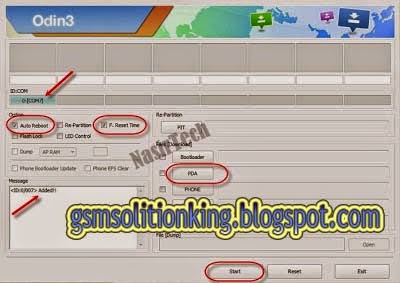
In Odin3 screen, you should see a COM Port
Make sure that, only the “Auto Reboot” and “F.
Reset Time” options are checked.
Now, extract the downloaded firmware zip
file, you’ll find a firmware file with extension.tar.md5
In Odin screen, click on AP (PDA in older Odin) button
and select the firmware file with.tar.md5 extension (The firmware file
look something like: G800FXXDLJ5_G800FODDDLI7_INU.tar.md5)
Now, click on the Start button to begin the
installation process, wait few moments.
Once completed, you would see “PASS!” message in
ID:COM port having green background
Your phone should automatically reboot after completion
You can now disconnect your phone from computer
Finish
Congratulations! your Galaxy S5 Mini G800F is
now updated to the latest and official Android 4.4.2 KitKat firmware.
Hope you successfully done the update process. If you followed everything as
mentioned in the above tutorial, then your your Galaxy S5 Mini should
now running on the latest Android 4.4.2 KitKat build version G800FXXU1ANH2.
You can confirm the firmware update details from Settings-About
Phone. If you find any problem with the above tutorial and download link,
feel free to contact with us using the comment form below..
Samsung Galaxy Firmware G800FXXU1ANH1 Android 4.4.2 KitKat Firmware for Galaxy S5 Mini SM-G800F- How to Install & Download
G800FXXU1ANH1 Android 4.4.2 KitKat Firmware Last Updated on
18-Aug-2014. If you own Samsung Galaxy S5 Mini SM-G800F (also known as
Galaxy S5 Neo) then you can now update your device with the latestXXU1ANH1 Android
4.4.2 KitKat official firmware. Samsung started rolling out an OTA
update about the firmware. The latest firmware build version number isG800FXXU1ANH1.
The Galaxy S5 Mini is the mini version of the latest Galaxy S5,
released with Android 4.4.2 KitKat out of the box and already received officialfirmware
update. If you own the Smartphone and not yet updated this latest firmware,
then update the same using our simple tutorial below. The below step by
step guide will help you to download and install the G800FXXU1ANH1
Android 4.4.2 KitKat Firmware manually through Odin.
As the Galaxy S5 Mini G800F already running on Android 4.4.2
KitKat firmware, you can onlyexpect few bug fixes (if any) and performance
enhancement with this latest update.
Android 4.4.2 KitKat comes with many new features than the previous Android 4.3
Jelly Bean, some includes- Camera shortcut on lockscreen, White icons
in status bar, Performance improvements, Transparent status bar, Improved
keyboard layout in landscape orientation, Select between the stock
messaging app or Hangouts for SMS and MMS, Select between TouchWiz or
other launchers through settings, Wireless printing, Updated Google
apps and many more.
So, want to update your Galaxy S5 Mini G800F to the latest G800FXXU1ANH1
Android 4.4.2 KitKat firmware? To install in official way,
either you can go for OTA (over the air) from Settings-About
Phone-Software Update or download firmware through the Samsung Kies utility.
However, most of us prefer manual way to update official firmware.
So, in this article you’ll find step by step manual guide to update the
latest Android 4.4.2 XXU1ANH1 firmware on your Galaxy S5 Mini
G800F through Odin.
Important Note:
"The firmware is released only for the Samsung
Galaxy S5 Mini SM-G800F model, so don’t try this in any other android
device. Check your device model number from Settings-About Phone. Also the
tutorial is based on Windows PC. Follow all the pre-requisites,
procedures and steps carefully to avoid breaking your phone".
Download G800FXXU1ANH1 Android 4.4.2 KitKat Official
Firmware
Samsung rolled out the firmware for the following countries.
The firmware which are unbranded or not locked to any
carrier, no matter of which country or region, can be flashed on any Galaxy
S5 Mini SM-G800F model.
France (Bouygues): G800FXXU1ANH1_G800FBOG1ANG2_BOG.zip
Italy (TIM): G800FXXU1ANH1_G800FTIM1ANG2_TIM.zip
[Firmware for rest of the countries and carrier will be added here when
available]
Previous Firmware Build:
Pre-Requisites:
Check battery percentage, your device should have at least 60% battery
power
Turn on USB Debugging mode, go to Settings-Developer
Options-USB Debugging
Backup important data and settings to external storage- follow this guide
Install USB driver for your device on your
computer- Download Samsung USB Driver
Points to be noted:
If you are using any Custom ROM such as- CyanogenMod,
Paranoid Android, AOKP, SLIM ROMs etc, then it’ll replaced by this official Stock
ROM
Custom Recovery (CWM or TWRP Recovery) will be replaced
by Stock Recovery
After flashing official firmware, your device will
no longer belongs to rooted device. However you can root your device any
time after flashing the firmware.
All the above pre-requisites are very important and must
follow before proceed to installation guide. Hope you get all the above points.
Now, go through the below tutorial to install Android 4.4.2 G800FXXU1ANH1 official firmware
on Galaxy S5 Mini G800F.
How to Install Android 4.4.2 KitKat Official Firmware on
Galaxy S5 Mini G800F through Odin:
Download Android 4.4.2 XXU1ANH1 Firmware for Galaxy
S5 Mini G800F from the above list
Download Odin
3.09
Switch off your phone and boot Galaxy S5 Mini G800F into Download
Mode by pressing and holding the Volume Down+Home+Power buttons
(long press until the boot screen appear), now press Volume Up key to
proceed to Download Mode.
Extract the downloaded Odin3.09 zip file and
run the Odin3 v3.09.exe file as an administrator (Right
click on the .exe file and click on Run as administrator)
Now connect your Galaxy S5 Mini G800F to your
computer via USB cable
In Odin3 screen, you should see a COM Port
Make sure that, only the “Auto Reboot” and “F.
Reset Time” options are checked.
Now, extract the downloaded firmware zip file, you’ll
find a firmware file with extension.tar.md5
In Odin screen, click on AP (PDA in older Odin) button
and select the firmware file with.tar.md5 extension (The firmware file
look something like: G800FXXDLJ5_G800FODDDLI7_INU.tar.md5)
Now, click on the Start button to begin the
installation process, wait few moments.
Once completed, you would see “PASS!” message in
ID:COM port having green background
Your phone should automatically reboot after completion
You can now disconnect your phone from computer
Finish
Congratulations! your Galaxy S5 Mini G800F is now
updated to the latest and official Android 4.4.2 KitKat firmware.
Hope you successfully done the update process. If you followed everything as
mentioned in the above tutorial, then your your Galaxy S5 Mini should now
running on the latest Android 4.4.2 KitKat build version G800FXXU1ANH1.
You can confirm the firmware update details from Settings-About Phone. If
you find any problem with the above tutorial and download link, feel free
to contact with us using the comment form below..
Samsung Galaxy Firmware G800FXXU1ANG2 Android 4.4.2 KitKat Firmware for Galaxy S5 Mini SM-G800F- How to Install
G800FXXU1ANG2 Android 4.4.2 KitKat Firmware Last Updated on
16-July-2014. Owners of Samsung Galaxy S5 Mini SM-G800F (also known as
Galaxy S5 Neo) can now update their device with the latest XXU1ANG2 Android
4.4.2 KitKat official firmware. Samsung started rolling out an OTA update about
the firmware. The latest firmware build version number is G800FXXU1ANG2.
TheGalaxy S5 Mini is the mini version of the latest Galaxy S5, released
with Android 4.4.2 KitKat out of the box and already received official firmware
update. If you own the Smartphone and not yet updated this latest firmware,
then update the same using our simple tutorial below. The below step by step
guide will help you to download and install the G800FXXU1ANG2
Android 4.4.2 KitKat Firmwaremanually through Odin.
As the Galaxy S5 Mini G800F already running on
Android 4.4.2 KitKat firmware, you can only expect few bug fixes (if any) and
performance enhancement with this latest update.
Android 4.4.2 KitKat comes with many new features than the previous Android 4.3
Jelly Bean, some includes- Camera shortcut on lockscreen, White icons
in status bar, Performance improvements, Transparent status bar, Improved
keyboard layout in landscape orientation, Select between the stock
messaging app or Hangouts for SMS and MMS, Select between TouchWiz or
other launchers through settings, Wireless printing, Updated
Google apps and many more.
So, want to update your Galaxy S5 Mini G800F to the latest G800FXXU1ANG2
Android 4.4.2 KitKat firmware? To install in official way, either you
can go for OTA (over the air) from Settings-About Phone-Software
Update or download firmware through the Samsung Kies utility.
However, most of us prefer manual way to update official firmware. So, in this
article you’ll find step by step manual guide to update the latest Android
4.4.2 XXU1ANG2 firmware on your Galaxy S5 Mini G800F through Odin.
Important Note:
"The firmware is released only for the Samsung
Galaxy S5 Mini SM-G800F model, so don’t try this in any other android
device. Check your device model number from Settings-About Phone.
Also the tutorial is based on Windows PC. Follow all the pre-requisites,
procedures and steps carefully to avoid breaking your phone".
Download G800FXXU1ANG2 Android 4.4.2 KitKat Official
Firmware
Samsung rolled out the firmware for the following countries.
The firmware which are unbranded or not locked to any carrier, no
matter of which country or region, can be flashed on any Galaxy S5 Mini
SM-G800F model.
[Firmware for rest of the countries and carrier will be added here when
available]
Pre-Requisites:
Check battery percentage, your device should have at least 60% battery
power
Turn on USB Debugging mode, go to Settings-Developer
Options-USB Debugging
Backup important data and settings to external storage- follow this guide
Install USB driver for your device on your
computer- Download Samsung USB Driver
Points to be noted:
If you are using any Custom ROM such as- CyanogenMod,
Paranoid Android, AOKP, SLIM ROMs etc, then it’ll replaced by this
official Stock ROM
Custom Recovery (CWM or TWRP Recovery) will be replaced
by Stock Recovery
After flashing official firmware, your device will no longer
belongs to rooted device. However you can root your device any time after
flashing the firmware.
All the above pre-requisites are very important and must
follow before proceed to installation guide. Hope you get all the above points.
Now, go through the below tutorial to install Android 4.4.2 G800FXXU1ANG2
official firmware on Galaxy S5 Mini G800F.
How to Install Android 4.4.2 KitKat Official Firmware on
Galaxy S5 Mini G800F through Odin:
Download Android 4.4.2 XXU1ANG2 Firmware for Galaxy
S5 Mini G800F from the above list
Download Odin
3.09
Switch off your phone and boot Galaxy S5 Mini G800F into Download
Mode by pressing and holding the Volume Down+Home+Power buttons
(long press until the boot screen appear), now press Volume Up key to
proceed to Download Mode.
Extract the downloaded Odin3.09 zip file and
run the Odin3 v3.09.exe file as an administrator (Right click
on the .exe file and click on Run as administrator)
Now connect your Galaxy S5 Mini G800F to your
computer via USB cable
In Odin3 screen, you should see a COM Port
Make sure that, only the “Auto Reboot” and “F.
Reset Time” options are checked.
Now, extract the downloaded firmware zip
file, you’ll find a firmware file with extension.tar.md5
In Odin screen, click on AP (PDA in older Odin) button
and select the firmware file with.tar.md5 extension (The firmware file
look something like: G800FXXDLJ5_G800FODDDLI7_INU.tar.md5)
Now, click on the Start button to begin the
installation process, wait few moments.
Once completed, you would see “PASS!” message in
ID:COM port having green background
Your phone should automatically reboot after completion
You can now disconnect your phone from computer
Finish
Congratulations! your Galaxy S5 Mini G800F is now
updated to the latest and official Android 4.4.2 KitKat firmware. Hope you
successfully done the update process. If you followed everything as mentioned
in the above tutorial, then your your Galaxy S5 Mini should now running on the
latest Android 4.4.2 KitKat build version G800FXXU1ANG2. You can confirm
the firmware updatedetails from Settings-About Phone. If you find any
problem with the above tutorial and download link, feel free to contact
with us using the comment form below..
Saturday, September 20, 2014
Samsung Galaxy Note 2 N7100XXUFNH2 Android 4.4.2 KitKat Firmware for Galaxy Note 2 GT-N7100 - How to Install & download
N7100XXUFNH2 Android 4.4.2 KitKat Firmware Last
Updated on 17-Sep-2014. Samsung Galaxy Note 2 GT-N7100 users can now
update their Smartphone with the latest XXUFNH2 Android 4.4.2 KitKat official firmware.
Samsung recently started rolling out an OTA update about the firmware. The
latest firmware build versionnumber is N7100XXUFNH2. The
Galaxy Note 2 N7100 has been running on Android 4.1.2 JB from a long and
later updated to official Android 4.3 Jelly Bean firmware. The device
already received official Android 4.4.2 KitKatfirmware update
and this is another KitKat update for GT-N7100. If you own the
Smartphone and not yet updated this latest official firmware, then update
the same using our simple tutorial below. The below guide will help you to download
and install the N7100XXUFNH2 Android 4.4.2 KitKat Firmware manually
through Odin.
Root N7100XXUFNH2
If you already updated the N7100XXUFNH2 firmware and
looking for an easy to follow method to root the firmware, then follow
this guide- Root N7100XXUFNH2 Android 4.4.2 Stock Firmware On Galaxy Note 2GT-N7100 - Simple Tutorial.

The latest Android 4.4.2 KitKat is definitely
a great update for the Galaxy Note 2 GT-N7100 users. The latest firmware will
upgrade the OS version to 4.4.2 KitKat and will bring many new
features and performance tweaks.
Android 4.4.2 KitKat comes with many new features than the previous Android 4.3 Jelly Bean, some includes- Camera shortcut on lockscreen, White icons in status bar, Performance improvements, Transparent status bar, Improved keyboard layout in landscape orientation, Select between the stock messaging app or Hangouts for SMS and MMS, Select between TouchWiz or other launchers through settings, Wireless printing, Updated Google apps and many more.
So, want to update your Galaxy Note 2 N7100 to the latest N7100XXUFNH2 Android 4.4.2 KitKatfirmware? For official way, either you can go for OTA (over the air) from Settings-About Phone-Software Update or download firmware through the Samsung Kies utility. However, most of us prefer manual way to update official firmware. So, in this article you’ll find step by step manual guide to update the latest Android 4.4.2 XXUFNH2 firmware on your Galaxy Note 2 N7100through Odin.
Also Check: Samsung Galaxy Note 2 GT-N7100 Full Specifications and Features
Android 4.4.2 KitKat comes with many new features than the previous Android 4.3 Jelly Bean, some includes- Camera shortcut on lockscreen, White icons in status bar, Performance improvements, Transparent status bar, Improved keyboard layout in landscape orientation, Select between the stock messaging app or Hangouts for SMS and MMS, Select between TouchWiz or other launchers through settings, Wireless printing, Updated Google apps and many more.
So, want to update your Galaxy Note 2 N7100 to the latest N7100XXUFNH2 Android 4.4.2 KitKatfirmware? For official way, either you can go for OTA (over the air) from Settings-About Phone-Software Update or download firmware through the Samsung Kies utility. However, most of us prefer manual way to update official firmware. So, in this article you’ll find step by step manual guide to update the latest Android 4.4.2 XXUFNH2 firmware on your Galaxy Note 2 N7100through Odin.
Also Check: Samsung Galaxy Note 2 GT-N7100 Full Specifications and Features
Important Note:
"The firmware is released only for the Samsung
Galaxy Note 2 GT-N7100 model, so don’t try this in any other android
device. Check your device model number from Settings-About Phone.
Also the tutorial is based on Windows PC. Follow all the pre-requisites,
procedures and steps carefully to avoid breaking your phone".
Download N7100XXUFNH2 Android 4.4.2 KitKat Official Firmware
Samsung rolled out the firmware for the following
countries. The firmware which are unbranded or not locked to any
carrier, no matter of which country or region, can be flashed on
any Galaxy Note 2 GT-N7100 model.
New Zealand : N7100XXUFNH2_N7100NZCFNH1_NZC.zip
[Firmware for rest of the countries and carrier will be added here when available]
[Firmware for rest of the countries and carrier will be added here when available]
Pre-Requisites:
Check battery percentage, your device should have at least 60% battery
power
Turn on USB Debugging mode, go to Settings-Developer
Options-USB Debugging
Backup important data and settings to
external storage- follow this guide
Install USB driver for your device on your computer- Download Samsung USB Driver
Points to be noted:
If you are using any Custom ROM such as- CyanogenMod,
Paranoid Android, AOKP, SLIM ROMs etc, then it’ll replaced by this
official Stock ROM
Custom Recovery (CWM or TWRP Recovery) will be replaced
by Stock Recovery
After flashing official firmware, your device will no
longer belongs to rooted device. However you can root your device any time
after flashing the firmware.
All the above pre-requisites are very important
and must follow before proceed to installation guide. Hope you get all the
above points. Now, go through the below tutorial to install Android
4.4.2 N7100XXUFNH2 official firmware on Galaxy Note 2 N7100.
How to Install Android 4.4.2 KitKat Official Firmware on
Galaxy Note 2 N7100 through Odin:

Download Android 4.4.2 XXUFNH2 Firmware for Galaxy
Note 2 N7100 from the above list
Download Odin
3.09
Switch off your phone and boot Galaxy Note 2 N7100 into Download
Mode by pressing and holding the Volume Down+Home+Power buttons (long
press until the boot screen appear), now press Volume Up key to
proceed to Download Mode.
Extract the downloaded Odin3.09 zip file and
run the Odin3 v3.09.exe file as an administrator (Right
click on the .exe file and click on Run as administrator)
Now connect your Galaxy Note 2 N7100 to your computer via
USB cable
In Odin3 screen, you should see a COM Port
Make sure that, only the “Auto Reboot” and “F.
Reset Time” options are checked.
Now, extract the downloaded firmware zip file,
you’ll find a firmware file with extension.tar.md5
In Odin screen, click on AP (PDA in older Odin) button and
select the firmware file with.tar.md5 extension (The firmware file look
something like: N7100XXDLJ5_N7100ODDDLI7_INU.tar.md5)
Now, click on the Start button to begin the
installation process, wait few moments.
Once completed, you would see “PASS!” message in
ID:COM port having green background
Your phone should automatically reboot after completion
You can now disconnect your phone from computer
Finish
Congrats! you have just finished the tutorial to update Android
4.4.2 KitKat official firmware on Galaxy Note 2 GT-N7100.
Hope you successfully completed the update process. If you followed
everything as mentioned in the above tutorial, then your device should now
running on the latestAndroid 4.4.2 Jelly Bean build version XXUFNH2. You can
verify the firmware update details fromSettings-About Phone. So,
enjoy all the new features and improvements on your device and don’t forget to
share your experience in the comment below.
Samsung Galaxy s3 mini G730AUCUBNG3 Android 4.4.2 KitKat Firmware for AT&T Galaxy S3 Mini SM-G730A - How to Install & download
G730AUCUBNG3 Android 4.4.2 KitKat Firmware Last
Updated on 17-Sep-2014. AT&T Samsung Galaxy S3 Mini SM-G730A users
can now update their Smartphone with the latest UCUBNG3 Android 4.4.2 KitKat officialfirmware.
Samsung recently started rolling out an OTA update about the firmware. The
latest firmware build version number is G730AUCUBNG3. The
Smartphone receiving Android 4.2.2 Jelly Bean from a long and this is the
first official Android 4.4.2 KitKat firmware update for
SM-G730A. If you own the Smartphone and yet to update this latest firmware,
then update the same using our simple tutorial below. The below guide will help
you to download and install theG730AUCUBNG3 Android 4.4.2 KitKat firmware manually
through Odin. You can also check latest available firmware for your device
through OTA (over the air) from Settings-About Phone-Software Update.

The latest Android 4.4.2 KitKat is definitely
a great update for the Verizon Galaxy S3 Mini SM-G730A users. The
latest firmware will upgrade the OS version to 4.4.2 KitKat and
will bring many new features and performance tweaks.
Android 4.4.2 KitKat comes with many new features than the previous Android 4.3 Jelly Bean, some includes- Camera shortcut on lockscreen, White icons in status bar, Performance improvements, Transparent status bar, Improved keyboard layout in landscape orientation, Select between the stock messaging app or Hangouts for SMS and MMS, Select between TouchWiz or other launchers through settings, Wireless printing, Updated Google apps and many more.
Android 4.4.2 KitKat comes with many new features than the previous Android 4.3 Jelly Bean, some includes- Camera shortcut on lockscreen, White icons in status bar, Performance improvements, Transparent status bar, Improved keyboard layout in landscape orientation, Select between the stock messaging app or Hangouts for SMS and MMS, Select between TouchWiz or other launchers through settings, Wireless printing, Updated Google apps and many more.
So, want to update your Galaxy S3 Mini G730A to
the latest G730AUCUBNG3 Android 4.4.2 KitKatfirmware? To
install in official way, either you can go for OTA update as mentioned
above or download firmware through the Samsung Kies utility.
However, most of us prefer manual way to update official firmware. So, in
this article you’ll find step by step manual guide to update the latest Android
4.4.2 UCUBNG3 firmware on your Galaxy S3 Mini G730A through Odin.
Important Note:
"The firmware is released only for the Samsung
Galaxy S3 Mini SM-G730A model, so don’t try this in any other android
device. Check your device model number from Settings-About Phone.
Also the tutorial is based on Windows PC. Follow all the pre-requisites,
procedures and steps carefully to avoid breaking your phone".
Download G730AUCUBNG3 Android 4.4.2 KitKat Official Firmware
Samsung rolled out the firmware for the following
countries. The firmware which are unbranded or not locked to any
carrier, no matter of which country or region, can be flashed on any Galaxy
S3 Mini SM-G730A model.
Pre-Requisites:
Check battery percentage, your device should have at least 60% battery
power
Turn on USB Debugging mode, go to Settings-Developer
Options-USB Debugging
Backup important data and settings to external storage- follow this guide
Install USB driver for your device on your
computer- Download Samsung USB Driver
Points to be noted:
If you are using any Custom ROM such as- CyanogenMod,
Paranoid Android, AOKP, SLIM ROMs etc, then it’ll replaced by this
official Stock ROM
Custom Recovery (CWM or TWRP Recovery) will be replaced
by Stock Recovery
After flashing official firmware, your device will no
longer belongs to rooted device. However you can root your device any time
after flashing the firmware.
All the above pre-requisites are very important and must
follow before proceed to installation guide. Hope you get all the above points.
Now, go through the below tutorial to install Android 4.4.2
G730AUCUBNG3 official firmware on Galaxy S3 Mini G730A.
How to Install Android 4.4.2 KitKat Official Firmware on
Galaxy S3 Mini G730A through Odin:

Download Android 4.4.2 UCUBNG3 Firmware for Galaxy
S3 Mini G730A from the above list
Download Odin 3.07
Switch off your phone and boot Galaxy S3 Mini G730A into Download
Mode by pressing and holding the Volume Down+Home+Power buttons (long
press until the boot screen appear), now press Volume Up key to
proceed to Download Mode.
Extract the downloaded Odin3.07 zip file and
run the Odin3 v3.07.exe file as an administrator(Right click on
the .exe file and click on Run as administrator)
Now connect your Galaxy S3 Mini G730A to your
computer via USB cable
In Odin3 screen, you should see a COM Port
Make sure that, only the “Auto Reboot” and “F.
Reset Time” options are checked.
Now, extract the downloaded firmware zip file,
you’ll find a firmware file with extension.tar.md5
In Odin screen, click on PDA button and select the firmware file
with .tar.md5 extension(The firmware file look something like:
G730AXXDLJ5_G730AODDDLI7_INU.tar.md5)
Now, click on the Start button to begin the
installation process, wait few moments.
Once completed, you would see “PASS!” message in
ID:COM port having green background
Your phone should automatically reboot after
completion
You can now disconnect your phone from computer
Finish
Congrats! you have finish the tutorial to update Android
4.4.2 KitKat official firmware on Galaxy S3 Mini SM-G730A.
Hope you successfully done the update process. If you followed everything
as mentioned above, then your your Galaxy S3 Mini should now running
on the latest Android 4.4.2 KitKat build version UCUBNG3. You
can confirm the firmware update details from Settings-About
Phone. If you stuck in any point or find any issue with the download link,
the feel free to contact with us using the comment form below.
Subscribe to:
Posts (Atom)


.png)


